
01 Part 01 of 11
Getting started
How the app is laid out, what each permission does, and how to set your location.
1.1Overview
Muslim App brings your daily worship into one place: prayer times, the Quran, Qibla, dhikr, and dua.
Prayer times and the Qibla direction are calculated on your phone, not fetched from a server. On a plane, in the subway, or anywhere the signal drops, both keep working without a connection. The Quran text ships with the app, so you can read offline too.
What's in the app
Prayer times
Times for your location, a countdown to the next one, adhan notifications, and a record of the prayers you've performed.
The Quran
All 114 surahs, translation and transliteration in the language you choose, follow-along recitation by a qari, and Khatmah tracking.
Qibla
Compass and map modes, a vibration when you're facing the Qibla, and a 360° tour of the Kaaba.
Dhikr and tasbih
Ready-made dhikr sets, a digital tasbih, goal setting, and a night mode for dhikr in the dark.
Ask AI Chat
Write in your religious questions and get clear, understandable answers.
Learning
Wudu and prayer guides, the prayer duas, Asma ul Husna, and a daily dua and hadith.
How to use this guide
- Search the sidebar for a topic; pressing
/jumps to the search field. - On wide screens, the contents column lists the subsections of whatever you're reading.
- The
#beside each heading is a direct link to it — handy when you want to send it to someone. - The button in the page header switches between light and dark.
1.2Interface tour
Everything in the app is reached from one place: the bar along the bottom edge of the screen.
Bottom navigation bar
Five buttons. The first four open a section each; the fifth opens a list of everything else. Whichever section you're in, its icon turns green.
| Button | What you'll find |
|---|---|
| Home | Your day at a glance — the next prayer and time remaining, the date and your city, your Quran progress, the Verse of the Day, the dua and hadith of the day, and Islamic-day cards. |
| Quran | Surah list, reading screen, Khatmah tracking, translation and transliteration settings. |
| Qibla | The Qibla direction, on a compass or a map. |
| Dhikr | Dhikr sets and the digital tasbih. |
| All | Everything that isn't on the bar. |
A dot on the corner of an icon means there's a section in there you haven't opened yet. It disappears once you visit.
The "All" list
The last button on the bar puts every remaining section on a single screen:
| Section | What it does |
|---|---|
| Ask AI Chat | Write in your religious questions and get answers |
| Duas and Hadiths | Read duas and hadiths organized by topic |
| Nearby Mosques | See mosques around you on a map |
| Surah Ya-Sin | A dedicated reading screen for Surah Ya-Sin |
| Asma ul Husna | The 99 names of Allah, with meanings and pronunciations |
| Prayer Times | Detailed prayer time list and notification settings |
| Islamic Days | The Hijri calendar and important dates |
| Islamic Guide | Guides to wudu, ghusl, and performing prayer |
| Profile | Your account, settings, language, appearance, notifications |
Some sections aren't available in every country or every app version. If one isn't listed, try updating the app.
What's on the Home screen
Reading down the screen:
- Background. The image or color filling the screen. It changes as the prayer times progress, and you can personalize it (see 1.3).
- City and date. Your current city with the Gregorian and Hijri dates. Tap the city to change it.
- Prayer card. The next prayer, the time remaining, and that prayer's alert button. Swipe across to see the other times.
- Shortcuts. One tap to the Quran, Qibla, and Dhikr.
- Quran card. The surah you last read and your Khatmah progress. Tap to continue where you left off.
- Verse of the Day. A verse that changes daily. You can read it and share it.
- Dua and hadith of the day. Short content, refreshed every day.
- Islamic-day cards. These appear on Fridays and on special religious days.
Type a question into the field just above the bottom bar and the Ask AI Chat screen opens with it already filled in. No need to type it again.
1.3Home screen background
The Home screen background changes with the prayer times. You can also set your own photo or a color instead.
How themes change through the day
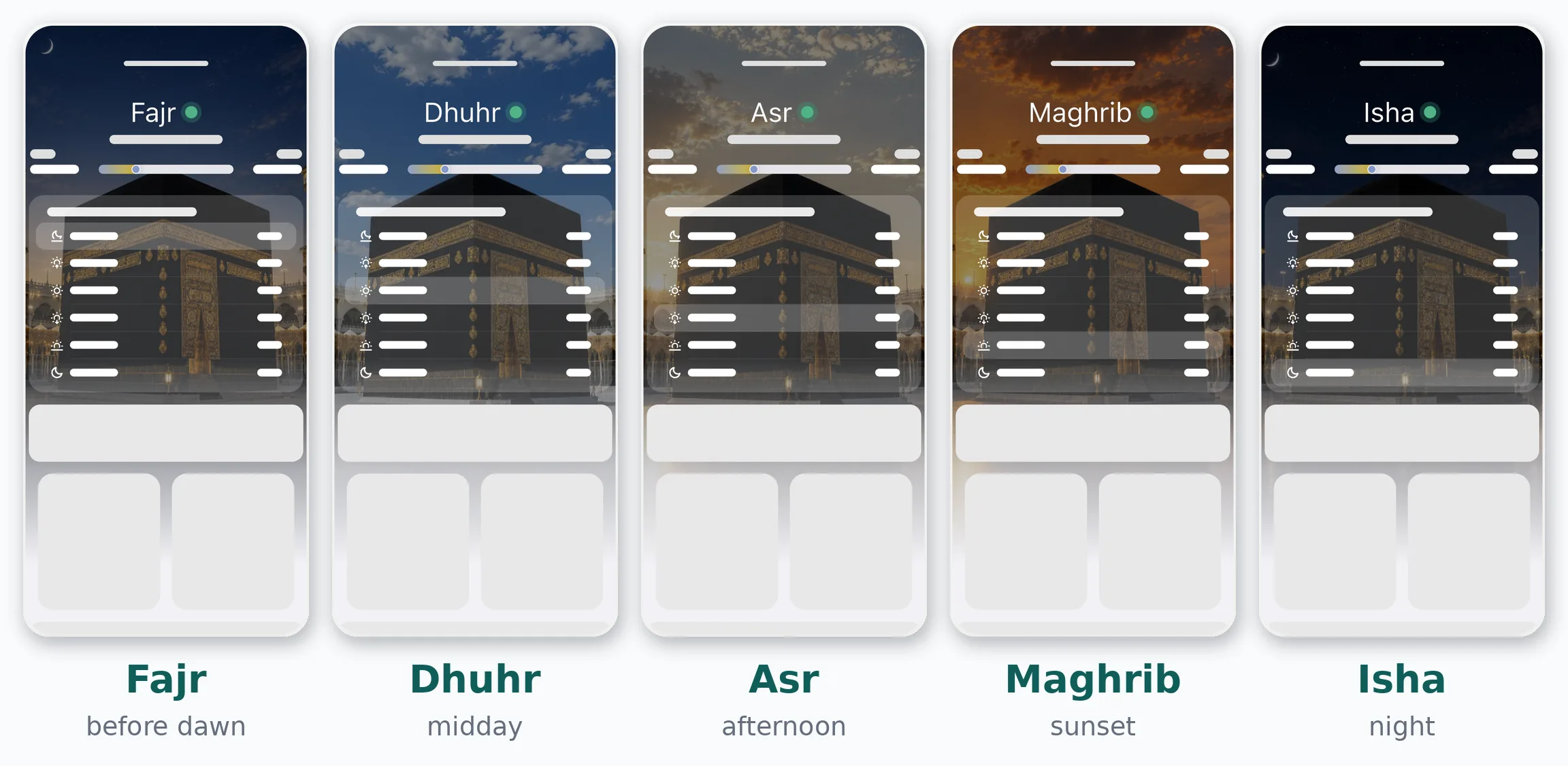
A theme isn't a single fixed image. Each one is redrawn for every prayer time, so the background changes as the day goes on.
The Kaaba theme, for example, gives you five views of the same scene:
You pick the scene once; there's nothing to switch and no schedule to set. Every photo category works this way — Desert, Mosque, Nature, and Kaaba each have their own set of views.
Opening the Themes page
Three taps, the same on iPhone and Android.
- Stay on the Home screen — the one showing today's prayer times and the countdown.
- Tap the photo icon in the header, level with the city name. The Themes page opens.
- Pick a category from the strip along the bottom, then tap a wallpaper.
Long-pressing the prayer card on the Home screen opens the same page.
Tap a wallpaper and it becomes your background immediately; there's nothing to save. Close the page with the ✕ in the title bar. No restart is needed, and you can switch as often as you like.
Built-in themes
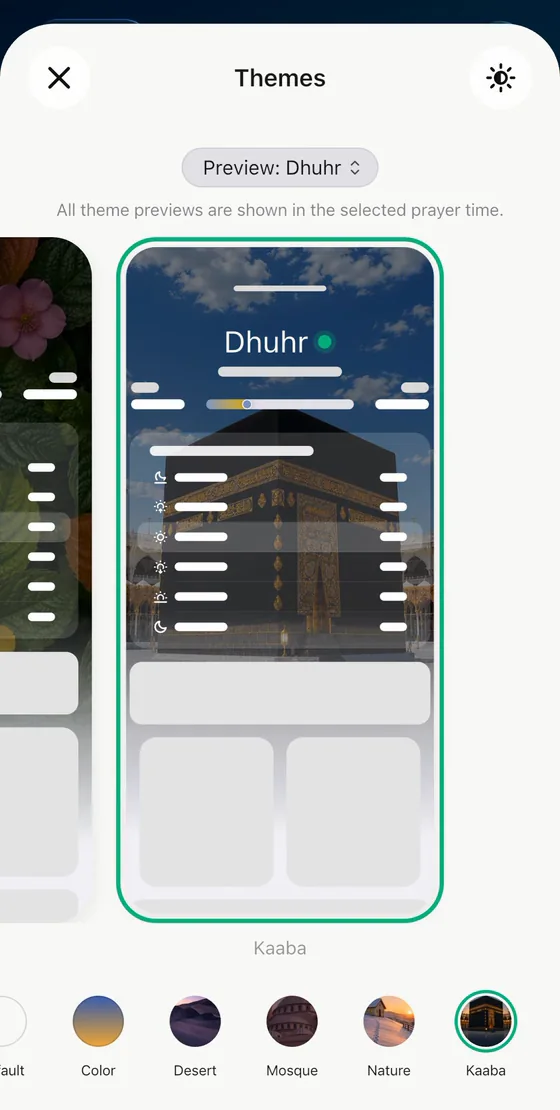
Tap a category in the strip along the bottom and the previews above switch to that category's wallpapers. Most categories have several options, so a single swipe takes you to another scene.
The categories currently on offer:
| Category | What's inside |
|---|---|
| Your Themes | Photos you've added yourself |
| Default | A clean layout with no photo |
| Color | Color gradients instead of a photo |
| Desert | Sand dunes and open desert |
| Mosque | Domes, minarets, courtyards |
| Nature | Mountains, leaves, flowers |
| Kaaba | The Kaaba and the Haram |
Categories are refreshed from time to time and new collections may be added. Your list may look slightly different, or briefly show a loading state the first time it opens.
Prayer-time preview
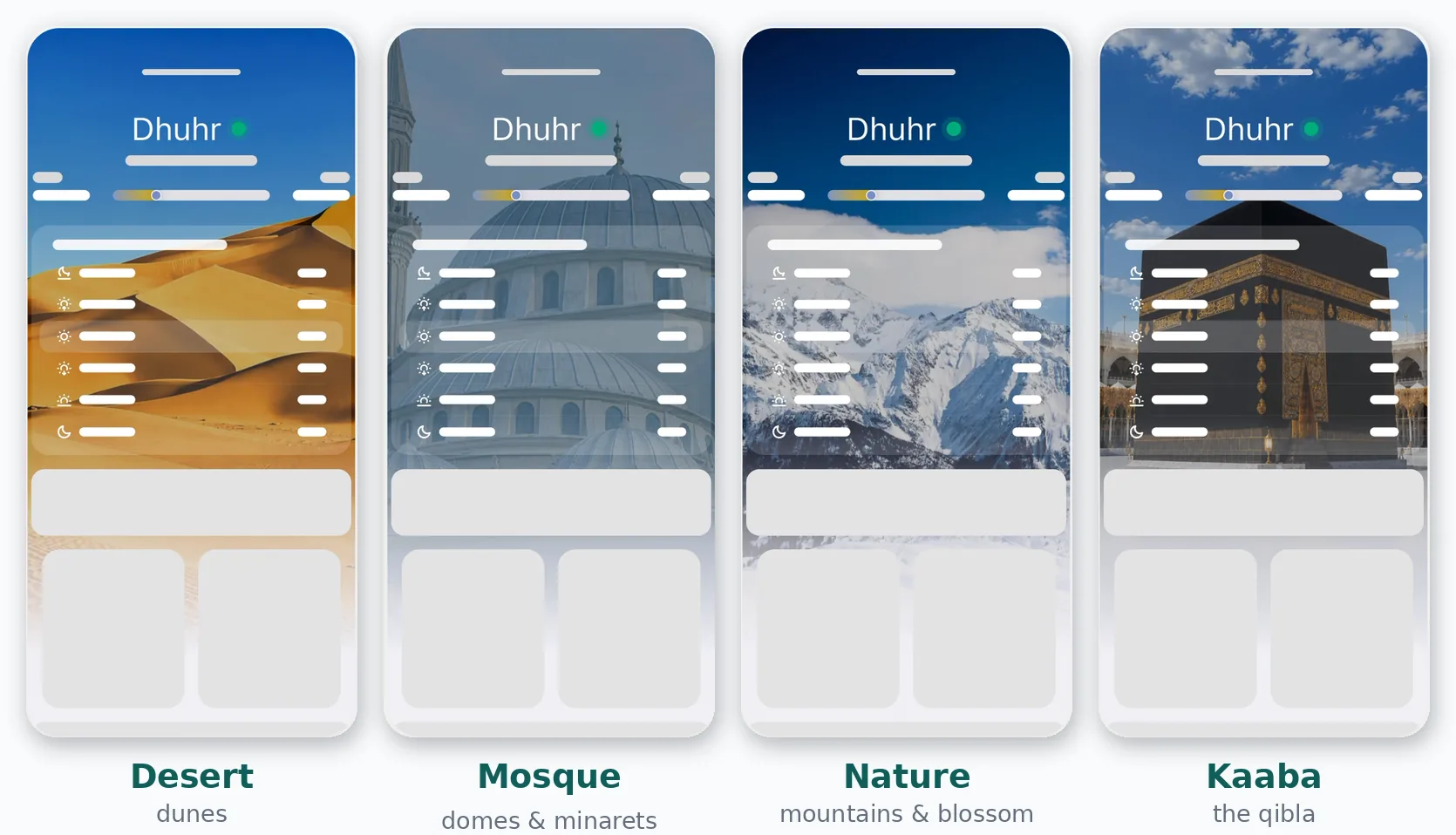
Tap the "Preview: Prayer time" button at the top of the page and pick a time from the list — every preview redraws for that time.
A theme can be bright at Fajr and very dark by Isha, so it's worth checking all five before you choose.
Using your own photo
Your Themes, first in the category strip, starts out empty with a single + button inside. Tap it, grant photo access when your phone asks, and pick any picture from your gallery.
Your photo then sits alongside the built-in collections, and switching between them takes one tap. You can delete any photo you no longer want.
Photos you add get one extra option: time-of-day tinting. Turn it on and the photo lightens and darkens as the prayer times progress — brighter in the morning, darker at Isha.
Choosing a photo
Any picture works, but some hold up better under the interface:
- Portrait beats landscape. A portrait photo fills the screen; a landscape one gets cropped.
- Keep the top third calm. The next prayer and the countdown sit there. A bright sky or a harsh highlight in that band is the most common cause of unreadable text.
- Slightly dark photos carry white text better. Evening and indoor shots work better than a bright midday scene.
- Put faces toward the bottom. In a family photo, faces in the lower half won't sit behind the countdown.
- Avoid screenshots and text-heavy images. Two layers of text rarely work together.
If a photo still comes out too bright, use dimming rather than switching pictures.
Photos go through your phone's own photo picker, so you decide which pictures Muslim App can see. You can revoke access from your phone's settings at any time; a built-in theme then takes over.
Colors instead of a photo
The Color section offers:
- Preset colors. Solid colors that ship with the app.
- Palettes and gradients. Backgrounds where several colors blend.
- Your own color. Define any color you like.
- Color by prayer time. Set a separate color for each prayer time; the background shifts as the times change.
Filters
You can apply a filter to change the tone of your image. Filters don't alter the image itself — remove the filter and you're back to the original.
Dimming
Dimming reduces the brightness of the wallpaper so prayer names, times, and the countdown stay readable over it.
Where: in the title bar of the Themes page — the round button with a sun icon, on the right.
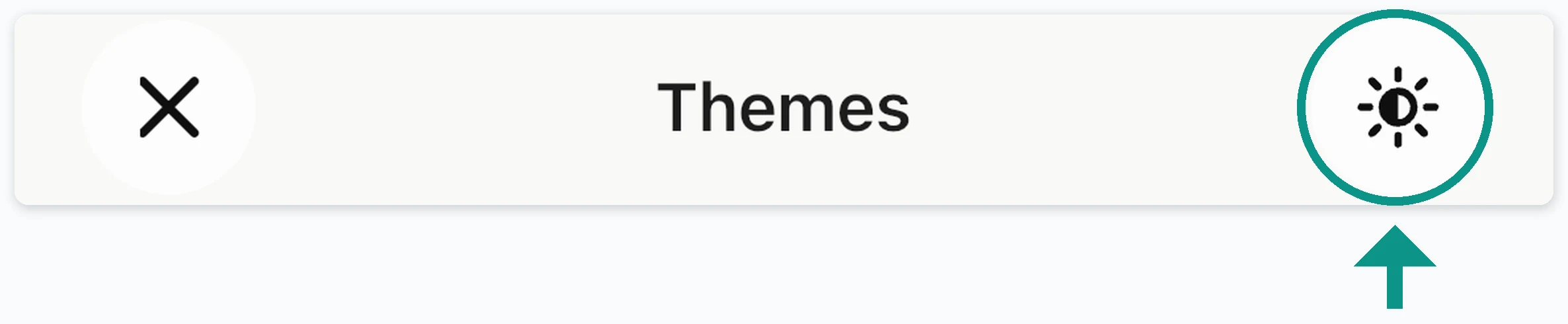
It helps most with a bright desert at midday, a white mosque against a pale sky, or your own photo with a busy top section — which is where the countdown sits.
Dimming applies to whichever theme is active, works the same on built-in categories and your own photos, and can be turned off at any time. The wallpaper itself never changes.
If a wallpaper looks too busy, try dimming first. For most photos it's enough.
How the Home screen looks with a theme
The wallpaper sits behind the whole prayer screen. The next prayer, the countdown, the Fajr-to-Dhuhr progress bar, and the full day's times stay where they were, on a semi-transparent panel that keeps them readable.
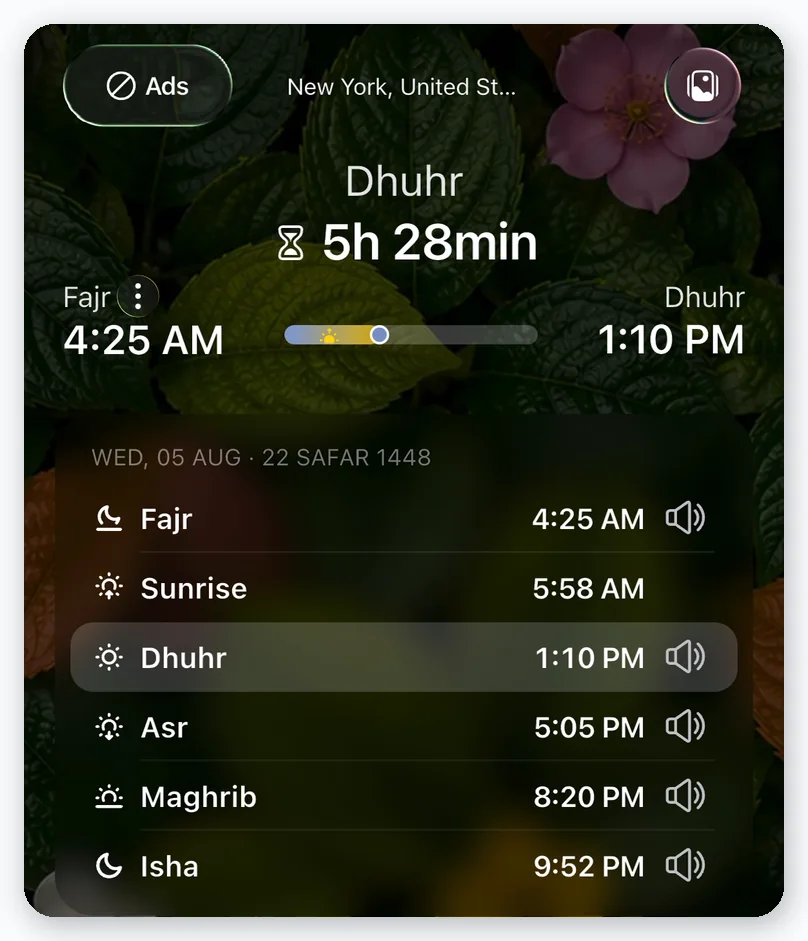
Built-in theme vs. your own photo
| Built-in theme | Your own photo | |
|---|---|---|
| Setup | Three taps | Three taps, plus photo permission |
| Choice | Several categories, each with a range of wallpapers | Everything in your gallery |
| Changes with prayer time | Yes, redrawn for every prayer time | The photo stays the same; with tinting on, it lightens and darkens |
| Readability | Tuned for each theme | Depends on the picture |
| Best for | A consistent look with no setup | A personal photo on your Home screen |
| Changing later | Anytime, unlimited | Anytime, unlimited |
Themes and adding your own photo are free. No subscription is required and there's no limit on how many times you can switch.
Themes don't change your phone's wallpaper
Themes change the look inside Muslim App only. Your phone's home screen and lock screen wallpapers are set in your phone's own settings and aren't affected.
If you want prayer times without opening the app, add a Muslim App widget to your phone's home screen (see 8.1).
The background here styles the Home screen only. The app-wide light and dark appearance is separate (see 9.1), and so is the paper color of the Quran reading page (see 3.2). You can set all three independently.
Themes come with the current version of the app. Update from the App Store or Google Play and reopen the app. If you've used the app for years: it used to be called Muslim Assistant — same app, same data, new name.
1.4Permissions
The app asks for three permissions. Each one powers a specific feature, and the app still works if you decline.
| Permission | What it's for | If you decline |
|---|---|---|
| Location | Prayer times and Qibla direction for where you are, and finding mosques around you | You pick your city manually; prayer times and Qibla still work. Nearby Mosques won't work. |
| Notifications | Prayer time and Imsak reminders, plus Khatmah reminders | The in-app countdown still works, but you won't get adhan or prayer-time alerts. |
| Motion and compass | Letting the Qibla compass know which way your phone is facing | The compass can't show direction; you can still find the Qibla in map mode. |
Granting a permission later
You can grant a permission you declined at first. The app takes you to your phone's settings.
Profile›LocationorNotifications›Open settings
If location is off, a banner appears on the Home screen and the Qibla screen. Tap it to grant permission in one step.
1.5Location
Prayer times and the Qibla depend entirely on where you are, which makes location the most important setting in the app.
Automatic location
With location permission granted, the app works out where you are and shows the city name on the Home screen. Your country is also used to pick the right time settings — whichever country you're in, the calculation accepted there is used.
Choosing a city manually
If you'd rather not grant location permission, or you want prayer times for another city, you can search for one.
Home›City name at the top›Search city
- Type the city name and pick it from the results.
- Cities you searched recently stay in the list.
- Your chosen city is remembered after you close and reopen the app.
When you travel
Open the app once in a new city or country and prayer times are recalculated for your new location, with notifications set to match.
The app won't change a city you set yourself. While traveling, your prayer times will still follow the old city until you pick the new one.
Part 01 of 11